To post on Instagram, open the app, tap Create (the plus sign at the top left of your feed), choose POST at the bottom of the screen, pick a photo or video, tap Next twice, write your caption and tap Share. The flow is the same on an iPhone and on an Android, as the Instagram Help Center shows. We checked the phone button names there on September 18, 2026, and the computer steps again on October 20, 2026.
If that was all you needed, you can stop here. The rest of this page covers what usually brings people back: which format to pick, the photo size that avoids a bad crop, several photos in one post, a Reel, a Story, posting from a computer, music and tags, what you can fix afterwards, and the part that holds most people up, which is deciding what to post.
How do you post a photo on Instagram?
A photo goes up on Instagram in seven taps, all inside the Create screen:
- Tap Create. It is the plus sign in the top left corner of your feed. Swiping right on the feed opens the same screen.
- Choose POST. It sits at the bottom of the screen, in the same row as Story and Reel. The difference between the three is in the next section.
- Pick the photo. Your camera roll opens. Tap the photo you want, or use the camera icon to take one on the spot.
- Adjust the frame. Pinch to zoom, drag to move the subject. What you see in the box is what gets published, so check that nothing important is cut off at the edges.
- Tap Next, then edit if you want to. This screen has the filters and the sliders for brightness, contrast and warmth. You can skip it entirely.
- Tap Next again and write the caption. This is also where you add audio, tag people, add the location and turn sharing to Facebook on or off.
- Tap Share. It shows up on your profile straight away.
If you are not ready to publish: on the caption screen, tap Back until you leave the editor, then tap the X and Save draft. The next time you tap Create, it is waiting under Drafts. Two catches, according to the Help Center page on drafts: the draft lives only on that phone and is lost if you uninstall the app, and Instagram only offers to save it once you have changed something, such as a filter, caption, location or tag.
Which should you post: a photo, a carousel, a Reel or a Story?
Post a single photo when one picture is enough, a carousel when you need up to 20 photos or videos in a set order, a Reel for vertical video you want people who don't follow you to see, and a Story for anything that only needs to last 24 hours. The Reel is the format that reaches new people, because Instagram's own explanation of how it ranks content says most of what people see in Reels comes from accounts they don't follow.
| Format | Where to tap | Limit | Stays on your profile | From a computer |
|---|---|---|---|---|
| Photo | Create, POST | One photo, kept at up to 1080 pixels wide | Yes, until you remove it | Yes |
| Carousel | Create, POST, SELECT MULTIPLE | Up to 20 photos and videos | Yes, until you remove it | Yes |
| Reel | Create, Reel | Up to 20 minutes | Yes, until you remove it | Upload only, no recording |
| Story | Create, Story | Disappears after 24 hours | Only if you add it to highlights | No |
The limits in the table come from the Help Center pages linked in each section below. One way to split a week: the finished job as a photo or a carousel, the process behind it as a Reel, and the small news of the day as a Story.
What size should an Instagram photo be?
An Instagram photo should be 1080 pixels wide and between 566 and 1440 pixels tall, which means an aspect ratio between 1.91:1 (landscape) and 3:4 (portrait). Inside that range, the Help Center page on image resolution says Instagram keeps the photo at its original resolution. Outside it, three things can happen:
- A photo taller or wider than that range gets cropped to the nearest shape Instagram supports.
- A photo narrower than 320 pixels gets enlarged to 320 pixels wide, and it looks soft once it is up.
- A photo wider than 1080 pixels gets sized down to 1080, so exporting at 4000 pixels gains you nothing.
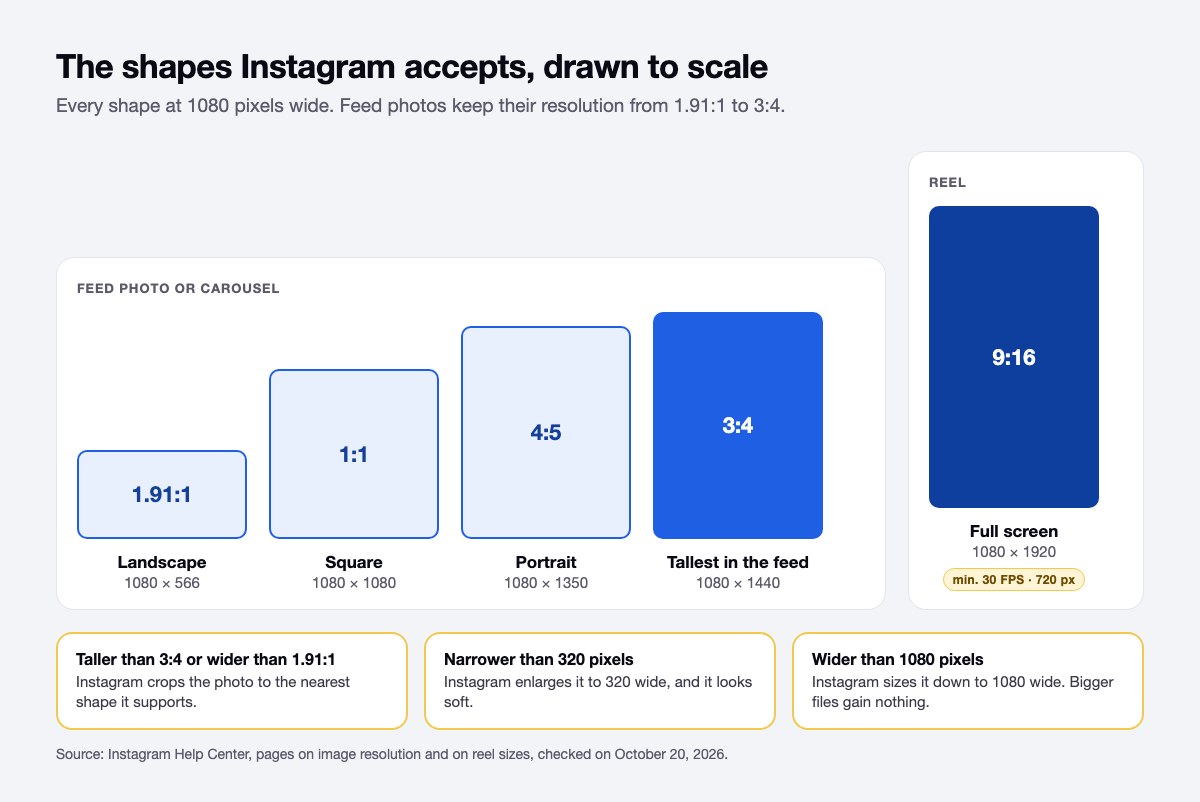
Video follows a different rule. A Reel can have any aspect ratio between 1.91:1 and 9:16, with a minimum of 30 frames per second and 720 pixels, according to the Help Center page on reel sizes. Filming with the phone upright gives you the tall 9:16 shape that fills the whole screen.
Your profile grid is one more reason to keep the subject in the middle of the frame. In January 2025 Instagram replaced the square thumbnails on profiles with taller rectangles, so a square or landscape photo loses part of its sides in the grid preview, while the post itself still opens in full. Since then Instagram has also let you reorder your profile grid, so the best thumbnails can sit at the top.
How do you post several photos in one Instagram post?
To post several photos in one Instagram post, tap Create, then POST, then SELECT MULTIPLE, and pick up to 20 photos and videos, the limit given on the Help Center page on carousels. This is the carousel, the post people swipe sideways. Two things are worth knowing before you start tapping:
- The order you tap is the order they appear. Instagram numbers each one as you select it, so the first photo you tap becomes the cover. If you get it wrong, hold a photo and drag it to a new spot before you publish.
- Photos and videos mix freely. A carousel can be four photos and a short clip, and the clip plays when the reader swipes to it.
From there the flow is the same as a single photo: Next, edit, Next, caption, Share. The filter you pick on the edit screen applies to all of them at once unless you tap a photo to change it on its own. The settings that apply to the whole set, such as one orientation for every photo and a separate caption for each one, are in our guide on how to post multiple photos on Instagram.
In our reference set of 476 carousels from 118 small-business and niche profiles, collected on August 8, 2026, 92 mix photos and videos, and the number of items runs from 2 to 20. A body shop in northern Brazil showed a car paint job in 19 items, 13 videos of the process followed by 6 photos, and the post drew 179 comments. Most small businesses go much shorter: of the 4,032 carousels created inside ZapPost between June 15 and August 31, 2026, 51% have exactly 4 slides.
How do you post a Reel?
To post a Reel, tap Create and choose Reel. You either record inside the app, holding the button to film in takes, or you tap the gallery icon in the corner and bring in a video you already shot.
The editing screen is where Reels differ from a normal post. You get the audio library, text on screen, stickers and the timeline where you trim each clip. When the video looks right, tap Next, write the caption and share. A Reel can run up to 20 minutes, but the Help Center page on recording reels warns that reels longer than three minutes are not recommended to new audiences.
If you are not sure a Reel will land, eligible creators can post it as a trial first. Turn on the Trial toggle before you share, and Instagram shows the Reel to people who don't follow you first, without putting it on your grid or your Reels tab. About 24 hours later you see its views, likes, comments and shares, and you can then share it with everyone, or let Instagram do it for you if the Reel does well in its first 72 hours, as Meta explained when it launched trial reels.
One habit that saves you later: film in vertical, holding the phone upright. A video shot sideways gets black bars or a crop that cuts heads off, and there is no fixing that after the fact.
How do you post a Story?
To post a Story, tap Create, or swipe right on the feed, and scroll to Story at the bottom. Pick a photo or video, add text, stickers, a poll or a link, then tap Your Story at the bottom left to publish.
Stories disappear from your profile after 24 hours unless you add them to your highlights, as the Help Center page on stories explains. That is exactly why they are easier to use. A photo of the work you finished this afternoon does not have to be good enough to sit on your grid forever.
How to post on Instagram from a computer
To post on Instagram from a computer, go to instagram.com in any browser, log in, click Create in the left-hand bar, then Post and Select from computer, and finish with Next, Next and Share. You crop, pick a filter and type the caption the same way you would on the phone. The Help Center lists JPG, PNG and HEIC/HEIF as the accepted photo formats, and on the last screen you can add alt text under Accessibility or turn off comments under Advanced settings.
It is the faster route when the photos are already on the computer, and a long caption written on a keyboard comes out better than the same thing thumbed out on a phone. On a computer, a video goes up as a reel, but you can only pick the cover and trim the start and end, with no recording and no timeline. Stories cannot be posted from the browser at all, and neither can a collaborative post. Those are still jobs for the phone.
What should you write in the caption?
A caption for a small business works when the first line says what the post is about, the middle gives the detail, and the last line tells the reader what to do next. A lot of people freeze here because they are trying to write something clever, and a plain caption does the job better:
| The line | What it does |
|---|---|
| The first sentence | Says what the post is about, because the rest is hidden behind "more" |
| The middle | Gives the detail, the context or the story behind the photo |
| The last line | Tells the reader what to do: comment, save it, send a message |
The caption on that body shop post follows this order: "Funilaria e pintura do polo" (body work and paint on the Polo) as the first line, the process and the partner brands in the middle, and an invitation to ask for a quote, with the phone number, at the end. For lines you can adapt to your own business, see Instagram captions for your business.
What can you fix after an Instagram post is up?
After posting you can edit the caption, the tags, the location and the alt text, take photos out of a carousel or change their order, and replace the music, but you cannot swap the photo itself. Case by case:
- Wrong caption or a typo. Tap the three dots on the post, choose Edit, fix it, save. The post keeps its comments and its likes, and the Help Center page on editing captions shows the same path.
- Wrong photo. There is no swapping it. In a carousel, Edit lets you remove a photo or video and change the order, but not add anything new. With a single photo, delete and post again, or leave it and move on.
- Wrong music. Since July 2026 you can replace the audio on a feed post or a carousel that is already up, and the post keeps its likes and comments, as Tech Times reported. The steps are in our page on replacing the audio on a published post.
- You want it off the grid without losing it. Archive it. The post disappears from public view, keeps its likes and comments, and you can bring it back later.
Can you schedule an Instagram post?
Yes. With a public account, Instagram lets you schedule a post up to 30 days ahead, with a limit of 25 posts a day, from More options on the caption screen. Turn on Schedule this post, pick the date and time, and Instagram posts it for you. Those limits come from the Help Center page on scheduling, and the full steps, with the exceptions, are in how to schedule Instagram posts.
It is worth doing if you tend to have a burst of energy on a Sunday and nothing left by Wednesday. Which hour to pick is a separate question, and your own profile has the answer: see the best time to post on Instagram.
What helps a post reach people who don't follow you?
Instagram says it ranks reels mainly by how likely you are to reshare one, watch it all the way through, like it and open its audio page. That comes from the same ranking explainer, signed by Adam Mosseri in May 2023. The text also lists what Instagram makes less visible: reels that are low-resolution, carry a watermark, are muted, have borders, are mostly text, or were already posted on Instagram.
Turned into habits, that means exporting the video at full quality, posting the original file instead of one saved from another app with its logo on top, keeping the sound on, and filming vertical so the Reel has no bars. None of it guarantees reach, but each one removes a reason for Instagram to show the Reel to fewer people.
What holds most people up once they know the steps?
Deciding what to post takes longer than any of the buttons above. The hard part arrives on a Tuesday at lunchtime, when you have five minutes free, you open the app to post something, and you have no idea what.
Knowing the steps does not tell you what today's post should be. If you recognize that, two pages here go straight at it: what to post when you run out of ideas, and bio lines that say what you do, because a good post sends people to a profile that has to explain itself in a few seconds.
ZapPost delivers the carousel, the Reels script and the caption ready to go. No writing prompts, no Canva, no new tool to learn. You review and publish.
Frequently asked questions
Why does my photo look blurry once it is published?
Instagram stores photos at a width of up to 1080 pixels, according to the Help Center page on image resolution, sizes down anything larger and enlarges anything under 320 pixels. The damage gets worse when the file was already squeezed once. The usual culprit is sending the photo to yourself on WhatsApp to get it from the computer to the phone: WhatsApp offers Standard or HD quality, so check that it is set to HD, which you can make the default under Storage and data. Or move the file with a cable, a cloud folder or email, and upload it from the gallery.
The plus sign is not where this page says it is. Now what?
The Help Center puts Create at the top of the feed. If it is not there, swipe right on the feed, which opens the same screen, or go to your profile and tap the plus sign in the top right corner. If none of that shows up, update the app in the App Store or Play Store.
Why did Instagram crop my photo?
The photo was taller than 3:4 or wider than 1.91:1, the range Instagram supports in the feed, so it was cropped to the nearest shape it accepts. Export it at 1080 by 1440 pixels or shorter and it goes up whole.
Do I need hashtags for the post to work?
A few that describe your service and your town give someone browsing that tag a way to land on you. Since December 2025, Instagram accepts at most five hashtags per post, as the Help Center page on hashtags and Social Media Today report. Write the caption first, then add the handful that genuinely describe the post.