Step by step
- Click “New Carousel” in the menu and choose the type. “With AI Images” creates text and image for each slide from the topic you give. “YouTube + AI Images” summarizes a YouTube video into slides: you just paste the link.
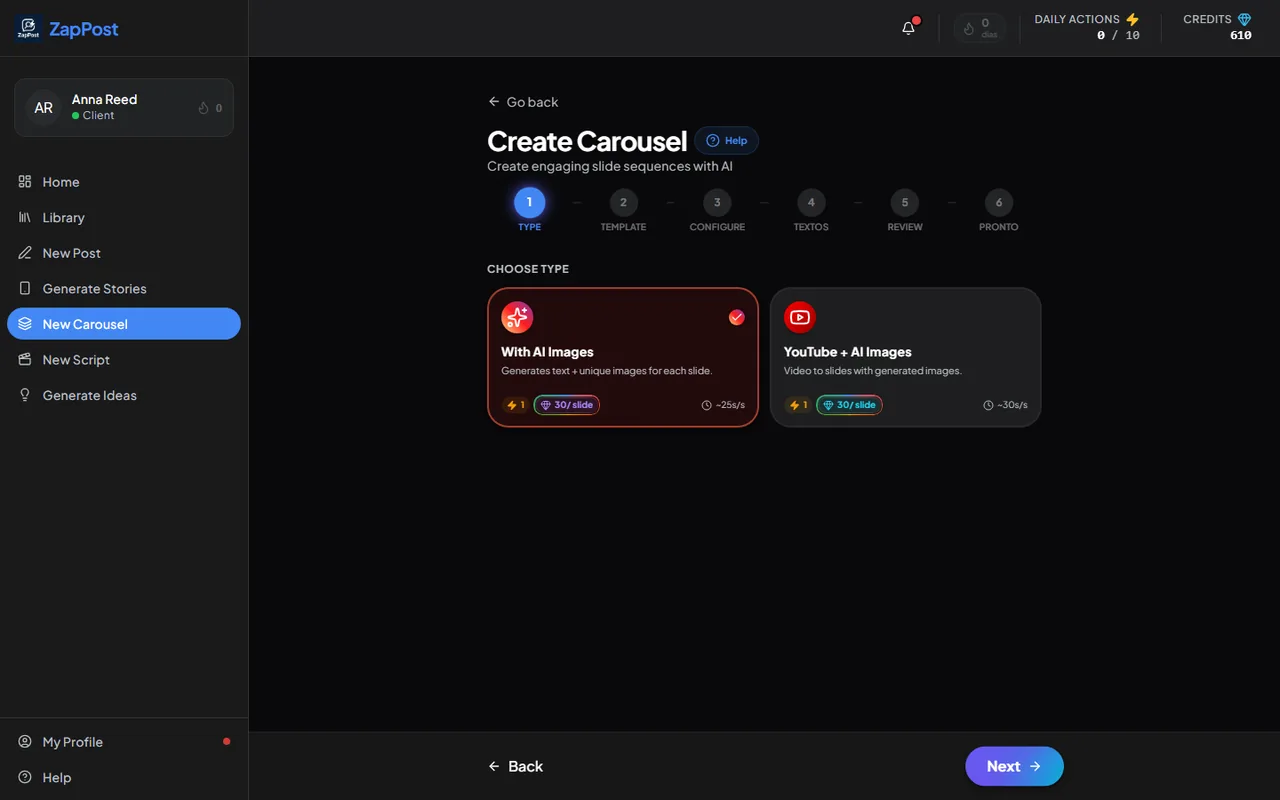
The first step of the carousel. Note the cost: 30 credits per slide. - Choose the visual template, the design all slides will follow.
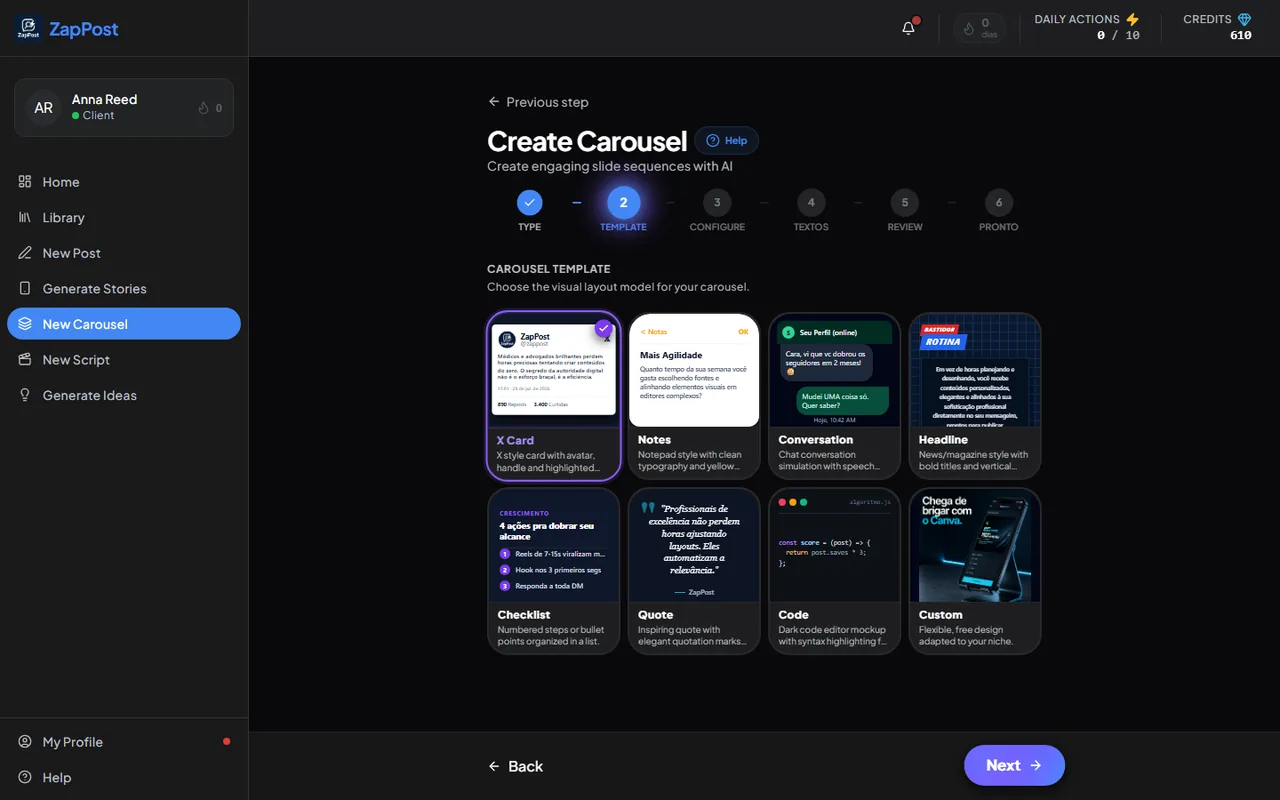
The second step: the slide template. - Configure: number of slides, the topic (or the video link) and, if you want, Magic Mode, which lets the AI pick the theme from your profile.
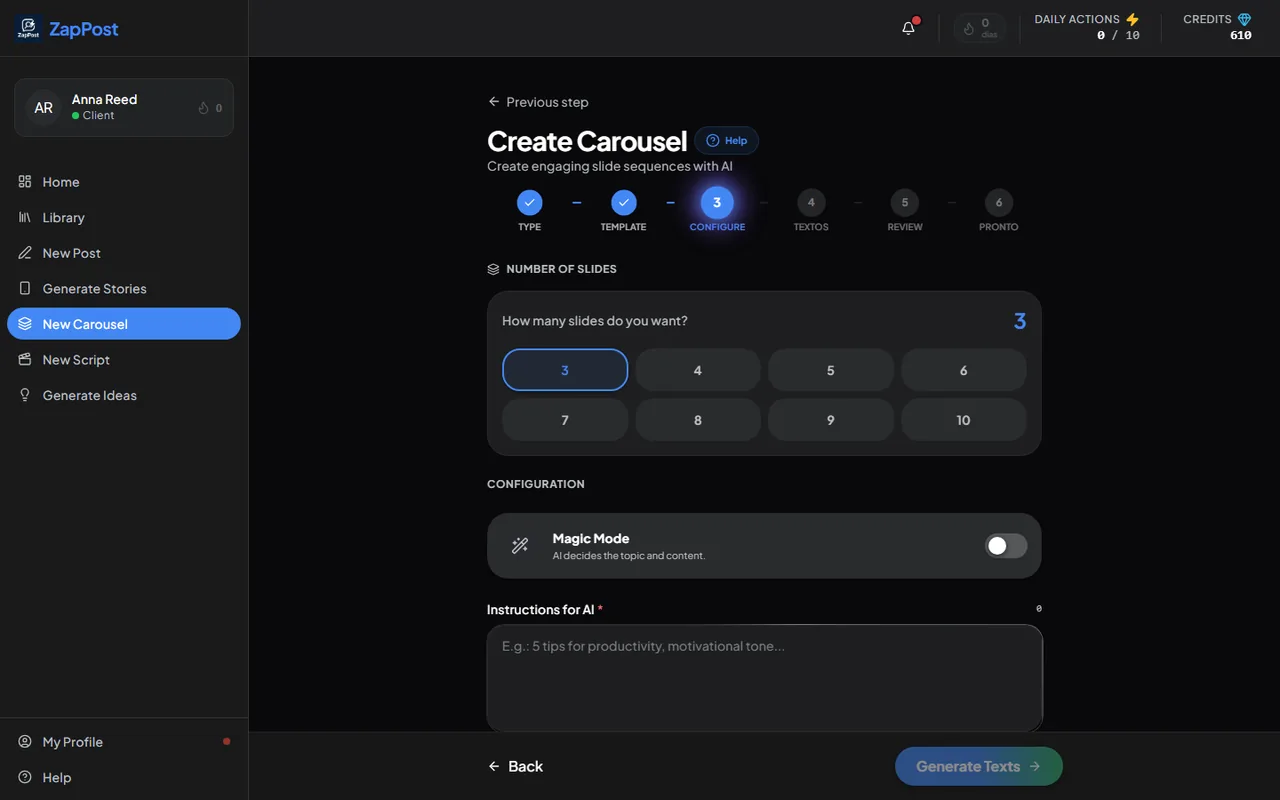
The third step: number of slides and the topic. - Generate the texts and review. You can rewrite any slide before the images are generated.
- Download. In the last step the slides come out as images ready to upload to Instagram in order. If you close the screen before downloading, the carousel is not lost: see where the content you already generated is kept.
How many slides
4 to 5 for a quick tip, 6 to 8 for content that teaches something. Keep the cost in mind: a carousel with images uses 1 action and 30 credits per slide, so one with 8 slides uses 240 credits. The text comes out of the action; the images come out of the credits. See how daily actions and credits work.
Carousel from a YouTube video
Good for reusing a video of yours or a good video on your subject: the AI reads the content, separates the main points and builds one slide for each. Paste the link in the topic field (or ask straight from the Creative Assistant on the home screen: “create a carousel from this link”).
Answer checked on 13 October 2026.